
This article will examine what FactoryTalk .mer file protection is and how to overcome it.
The extension “.mer” stands for Machine Edition Runtime. Accordingly, this type of file is used by Allen Bradley PanelView HMI’s for runtime graphics.
FactoryTalk View Studio is used to create and configure FactoryTalk projects. Once all configurations have been made, the project is saved as a “.mer” file.
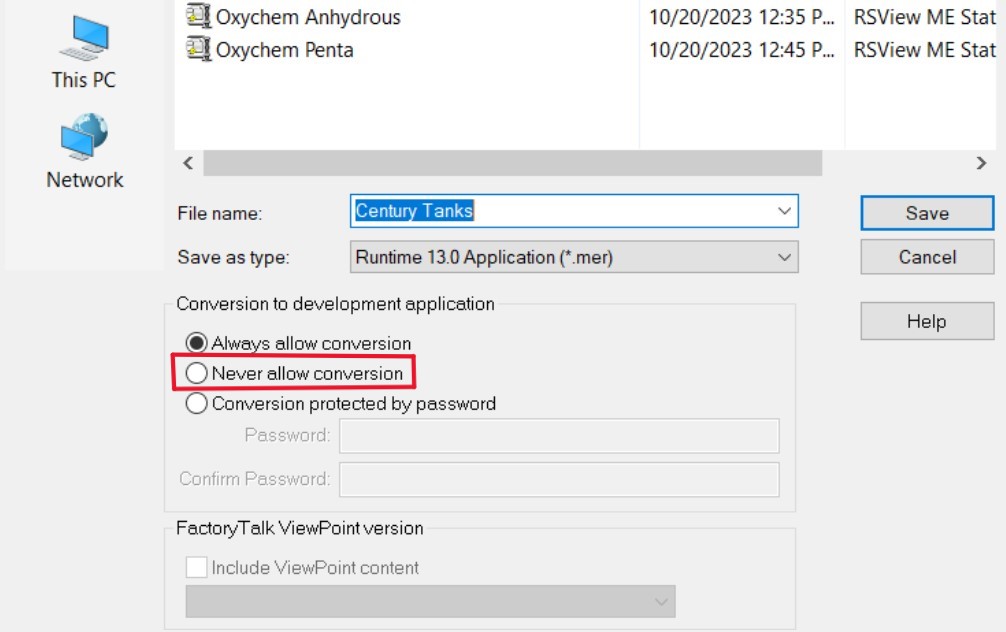
Once the project has been saved as a “.mer” file, the “.mer” file can be downloaded to and used by the PanelView HMI.
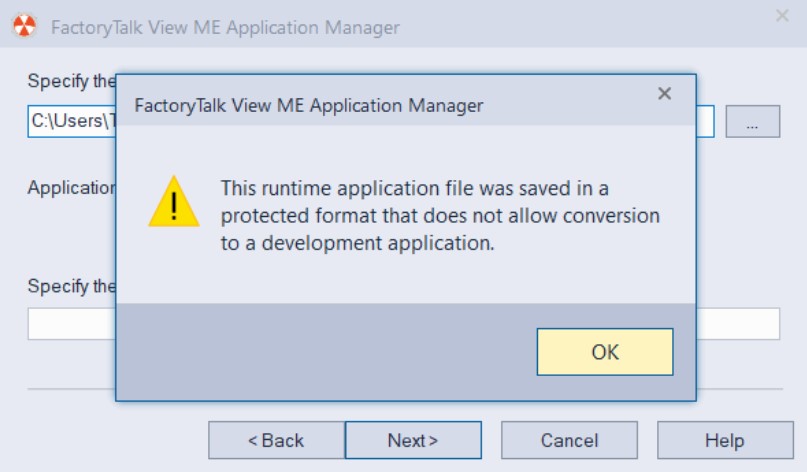
When trying to run “Restore runtime application” with a “.mer” file that has had “Never allow conversion” applied during the compilation process, the conversion will fail and the following error will result:
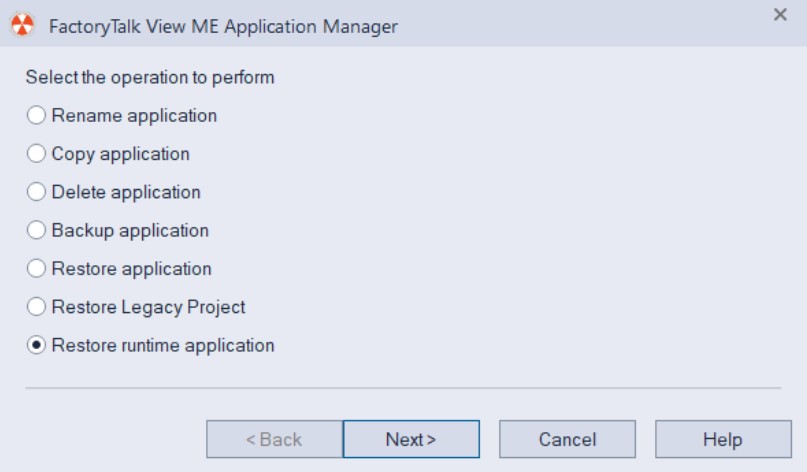
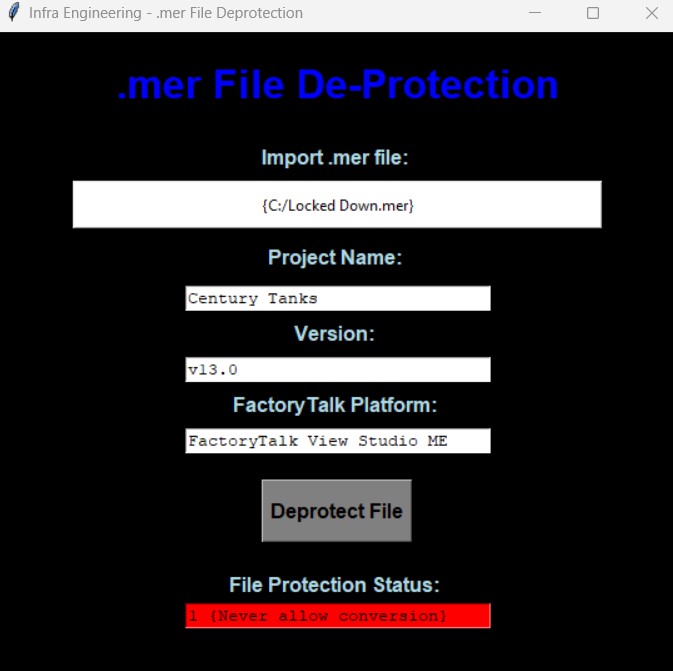
Infra has developed a tool to automatically deprotect your “.mer” file, which can be downloaded below. To use the tool, drag and drop your protected .mer file into the application tool:
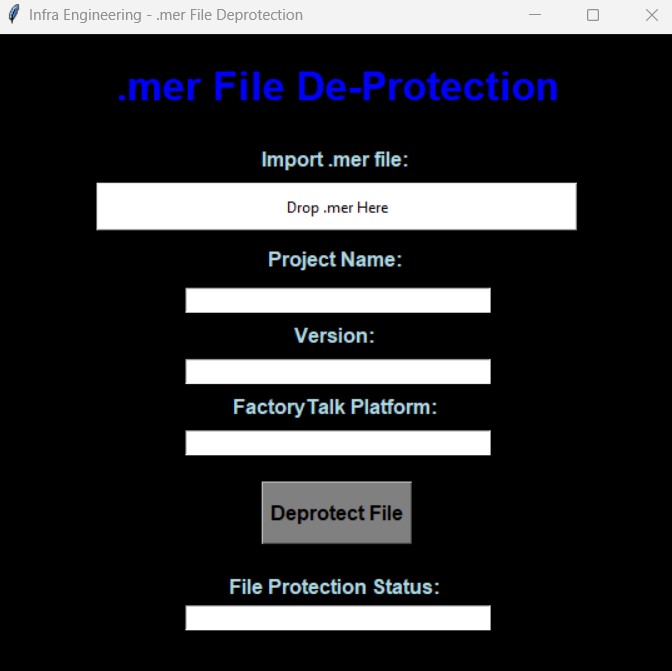
Once the file has been imported into the tool, the FactoryTalk project file’s Project Name, Version, FactoryTalk Platform, and File Deprotection Status will be displayed:
After clicking the “Deprotect File” button, the .mer file will effectively be deprotected:
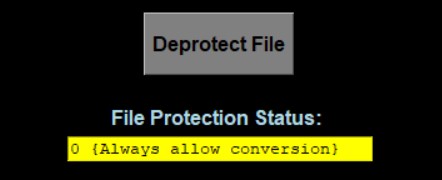
The tool window can now be closed. The “.mer” file can be successfully imported into the FactoryTalk ME View Application Manager and the restore function will now function.